Duplicating a Page in Squarespace 7.1
When you're building websites in Squarespace 7.1, one of the easiest ways to save time is by duplicating existing content instead of rebuilding everything from scratch.
Whether you're creating landing pages, service pages, blog articles or online store products, Squarespace includes several duplication tools that can dramatically speed up your workflow while keeping your design consistent across the entire site.
For professional designers, duplication is more than a convenience. It's an essential part of efficient Squarespace wireframing, rapid prototyping and creating repeatable website systems.
In this guide, we'll walk through all the major ways you can duplicate content in Squarespace 7.1, including:
Duplicating an entire page
Duplicating sections
Duplicating content blocks
Duplicating multiple elements at once
Duplicating blog posts
Duplicating products
Using Saved Sections for even faster workflows
Let's get started.
Contents
- How to Duplicate a Page in Squarespace 7.1
- Important: Update the URL Slug
- How to Duplicate a Section in Squarespace
- The Better Alternative: Using Saved Sections
- What Are Saved Sections?
- How to Save a Section
- How to Add a Saved Section
- Saved Sections and Squarespace Wireframing
- Improve Your Workflow with SquareForge
- Does This Work in Squarespace 7.0?
- Final Thoughts
- FAQs
How to Duplicate a Page in Squarespace 7.1
The quickest way to duplicate an entire page is through the Pages panel.
Step 1: Open the Pages Menu
From your Squarespace dashboard:
Navigate to Pages
Locate the page you want to copy
Hover over the page title
Step 2: Open Page Settings
Click the gear icon beside the page.
This opens the page settings panel.
Step 3: Duplicate the Page
Inside the General tab:
Scroll down
Click Duplicate Page
Confirm the duplication
Squarespace will create an exact copy of the page.
Where Does the Duplicated Page Go?
The duplicated page will appear inside the Not Linked section.
This means:
The page exists on your site
It can be published
It won't automatically appear in your navigation menu
This allows you to safely edit the new page before making it visible to visitors.
Important: Update the URL Slug
One mistake many users make is forgetting to change the URL slug after duplication.
For example:
about → about-1
services → services-1
home → home-1
While Squarespace automatically creates a unique URL, these aren't ideal for usability or search visibility.
To change the URL slug:
Open the duplicated page settings
Select General
Edit the URL slug field
Save changes
Use a clear URL that accurately reflects the page content.
For example:
/web-design-services
/branding-services
/case-study-example
How to Duplicate a Section in Squarespace
Squarespace 7.1's Fluid Engine editor makes it easy to duplicate entire sections.
A section contains everything within a specific area of the page, including:
Text
Images
Videos
Backgrounds
Buttons
Layout settings
To duplicate a section:
Enter Edit Mode
Hover over the section
Locate the duplicate icon (two overlapping squares)
Click Duplicate
The section will instantly be copied beneath the original.
The Better Alternative: Using Saved Sections
While duplication is useful, there is an even more powerful workflow tool in Squarespace 7.1.
Saved Sections.
Many experienced Squarespace designers use Saved Sections far more frequently than simple duplication.
What Are Saved Sections?
Saved Sections allow you to store a section and reuse it across multiple pages.
Instead of duplicating a section from an existing page, you can:
Save it once
Access it whenever needed
Insert it anywhere on your website
Think of it as creating your own personal section library.
How to Save a Section
Inside the page editor:
Hover over the section
Click the heart icon
Select Save Section
Choose whether to save it:
To the current site
To your entire Squarespace account
Most designers save sections to the current site, but account-wide saving can be useful if you manage multiple websites.
How to Add a Saved Section
On any page:
Click Add Section
Select Saved Sections
Choose the section you want
Insert it
The section appears instantly.
Saved Sections and Squarespace Wireframing
For Squarespace designers, Saved Sections become even more valuable during Squarespace wireframing.
Instead of starting every project from a blank canvas, you can build a reusable library of:
Hero sections
Service layouts
Testimonial blocks
Team sections
Contact areas
Pricing tables
CTA sections
You can then assemble complete page wireframes in minutes.
This modular approach is becoming the preferred workflow for many professional Squarespace designers because it reduces repetitive work and allows more focus on strategy, content and user experience.
Improve Your Workflow with SquareForge
If you regularly build custom Squarespace websites, duplication tools and Saved Sections are only part of the solution.
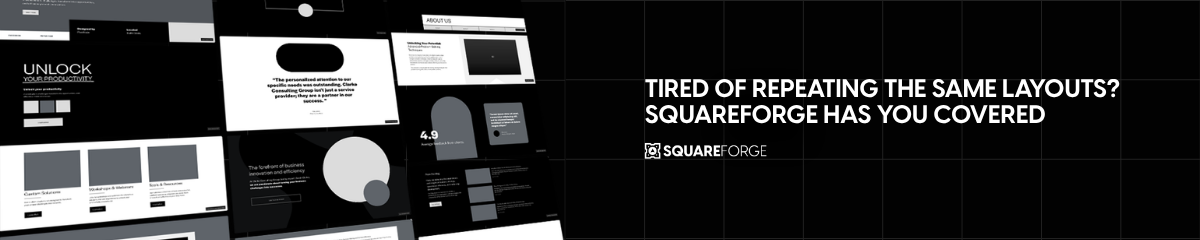
SquareForge takes this concept much further by providing a complete modular Squarespace wireframing and layout system designed specifically for Squarespace 7.1.
Instead of repeatedly building the same page structures, SquareForge gives designers access to reusable layouts and pre-built sections that can be combined into fully customised websites.
This allows you to:
Speed up Squarespace wireframing
Prototype client websites faster
Maintain consistency across projects
Reduce repetitive design work
Create custom websites more efficiently
For freelancers and agencies managing multiple projects, a modular workflow can dramatically reduce build times while improving consistency and client collaboration.
Does This Work in Squarespace 7.0?
No, not always.
The duplication features described in this guide are specific to Squarespace 7.1 and Fluid Engine.
If you're using Squarespace 7.0, some options may differ or be unavailable entirely.
To check your version:
Open the Pages panel
Scroll to the bottom
Look for the version number
If it displays Version 7.1, these duplication tools should be available.
Final Thoughts
Duplicating content in Squarespace 7.1 is one of the simplest ways to build websites faster while maintaining consistency.
Whether you're duplicating:
Entire pages
Sections
Content blocks
Blog posts
Products
Each method helps reduce repetitive work and streamline your website creation process.
For designers, combining duplication tools with Saved Sections creates an efficient modular workflow that makes Squarespace wireframing significantly faster and more organised.
FAQs
-
Open the Pages panel, click the gear icon beside the page, scroll down and select "Duplicate Page". The copied page will appear in the Not Linked section.
-
Duplicated pages are automatically placed in the Not Linked section, allowing you to edit them before adding them to your site navigation.
-
Saved Sections allow you to store reusable sections and insert them on any page without rebuilding them from scratch.
-
SquareForge provides a modular Squarespace wireframing system with reusable layouts and sections, helping designers build custom websites faster and more consistently.
And if you're looking to take that workflow even further, tools like SquareForge provide a structured, reusable framework that helps professional Squarespace designers plan, prototype and build custom websites more efficiently.